Skip to content
View in the app

A better way to browse. Learn more.

Dragonmount

A full-screen app on your home screen with push notifications, badges and more.

To install this app on iOS and iPadOS
  1. Tap the Share icon in Safari
  2. Scroll the menu and tap Add to Home Screen.
  3. Tap Add in the top-right corner.
To install this app on Android
  1. Tap the 3-dot menu (⋮) in the top-right corner of the browser.
  2. Tap Add to Home screen or Install app.
  3. Confirm by tapping Install.

*waves

Featured Replies

  • Shayol Ghul Org Staff

*pokes a little wolfie head in the door and carefully looks around at everyone sleeping.*


hehehehehe


*slinks on through the snoring trollocs, dreadlords and clueless black ajah, tip-toeing the way tonthe dark one. pausing briefly mid-step with the snort of a trolloc turning on its side to continue its slumber before continuingto the target. just as sleepy as the rest of her pathetically unassuming horde the dark one sleeps on. never feeling the small wolkin teeth taking hold of the nap of her neck, and slowly dragging her on out of shayol ghul. once the dark one is safely desposited with her kin Crmoss sneaks back in dragging the dark ones surrogate replacement*


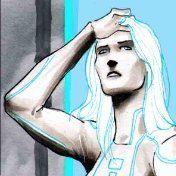
149040437.jpeg


hehehe perfect. no one will even notice......


*slinks back out of shayol ghul*

and also a wolf dragging the embodiment of evil leaves tracks all the way back to its den.

Archived

This topic is now archived and is closed to further replies.

Account

Navigation

Search

Search

Configure browser push notifications

Chrome (Android)
  1. Tap the lock icon next to the address bar.
  2. Tap Permissions → Notifications.
  3. Adjust your preference.
Chrome (Desktop)
  1. Click the padlock icon in the address bar.
  2. Select Site settings.
  3. Find Notifications and adjust your preference.