

Skip to content
View in the app

A better way to browse. Learn more.

Dragonmount

A full-screen app on your home screen with push notifications, badges and more.

To install this app on iOS and iPadOS
  1. Tap the Share icon in Safari
  2. Scroll the menu and tap Add to Home Screen.
  3. Tap Add in the top-right corner.
To install this app on Android
  1. Tap the 3-dot menu (⋮) in the top-right corner of the browser.
  2. Tap Add to Home screen or Install app.
  3. Confirm by tapping Install.

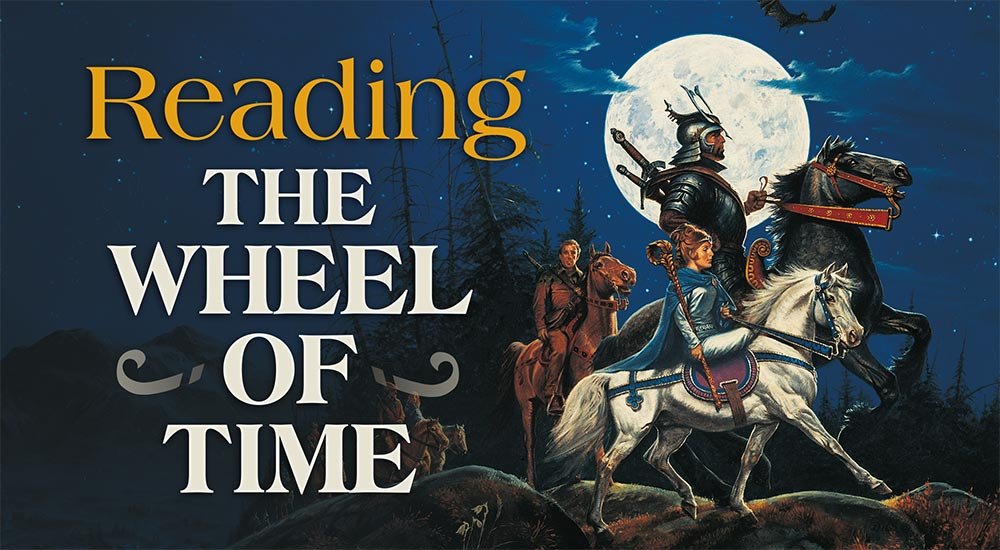
Reading the Wheel of Time Plus Free Eye of the World Ebook


  • Tor.com's Ebook Club members can pick up a free copy of The Eye of the World to help kickoff their new weekly column "Reading the Wheel of Time."


Later this month, Tor.com will be kicking off a new column devoted to reading The Wheel of Time, aptly named "Reading the Wheel of Time."  This weekly article will be headed by Kelsey Jefferson Barrett.  Barrett, though steeped in sci-fi and fantasy, has yet to embark on a journey through The Wheel of Time series.  He will be looking at it all through a new lens and with fresh perspective.  Barrett's first steps through Randland will debut Tuesday, February 20th.


To celebrate this, and encourage everyone to read along, Tor.com is giving away free ebook copies of The Eye of the World to Tor's Ebook Club members!  The free copies can only be redeemed February 13th, 14th, and 15th!  Be sure to act quickly so you don't get left behind!


Wheel of Time fans rallied behind Leigh Butler and her reread on Tor.com, and I'm sure Barrett will do an equally amazing job of seeing the depth and complexities that make up Robert Jordan's universe.  I'm excited to gaze upon its wonder for the first time--even if only by association.

Edited by Mashiara Sedai


User Feedback

Recommended Comments

There are no comments to display.

Join the conversation

You can post now and register later. If you have an account, sign in now to post with your account.
Note: Your post will require moderator approval before it will be visible.

Guest
Unfortunately, your content contains terms that we do not allow. Please edit your content to remove the highlighted words below.
Add a comment...

Account

Navigation

Search

Search

Configure browser push notifications

Chrome (Android)
  1. Tap the lock icon next to the address bar.
  2. Tap Permissions → Notifications.
  3. Adjust your preference.
Chrome (Desktop)
  1. Click the padlock icon in the address bar.
  2. Select Site settings.
  3. Find Notifications and adjust your preference.