

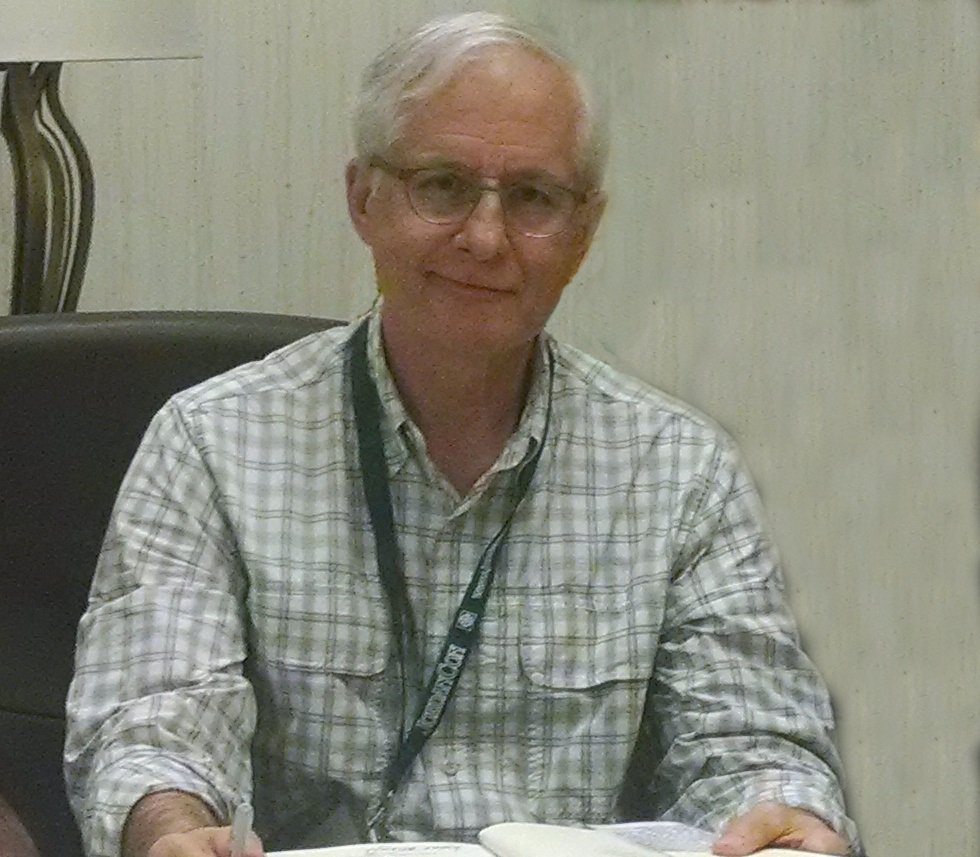
The announcement of Alan Romanczuk's retirement from Team Jordan was released earlier today from the official Robert Jordan's The Wheel of Time Google+ page.
QuoteWe announce the retirement, effective Christmas 2017, of a longstanding team member, Alan Romanczuk.
Co-author of THE WHEEL OF TIME COMPANION, Alan joined Bandersnatch Group the summer of 2001 to help with continuity and research on the series and other odd jobs such as building and repairing computers for the team. Yes, we are that hard on electronics.
He is thankful for his friendships within the Wheel of Time fan community and for the opportunity to work with the Bandersnatch family, Harriet and Maria, for so many years. Most of all he is grateful for the time he was able to spend with Robert Jordan while he still walked the Earth.
Alan says that he intends to spend his days taking long walks around Charleston (i.e., the Wandering Ukrainian) and binge watching videos of Pussy Riot and Taffy Bennington. And, of course, the Wheel of Time TV series when it is released. What he really does with his free time remains to be seen.
He and his wife Amy will be attending JordanCon again this coming April in Atlanta and they look forward to seeing friends there for the event.
We wish him all the best.

Edited by Mashiara Sedai
Recommended Comments
Join the conversation
You can post now and register later. If you have an account, sign in now to post with your account.
Note: Your post will require moderator approval before it will be visible.