

Hello, friends! The Wheel has turned all the way around to Thursday again, which means two things: the weekend is not too far away, and it's time for our Rotating Features blog!
As you may know from my previous posts, I'm quite into the gaming scene; and when I say gaming I don't just mean electronic, but tabletop gaming, board gaming, and role playing.
I also love science fiction and a popular favorite of many is the Star Wars universe.
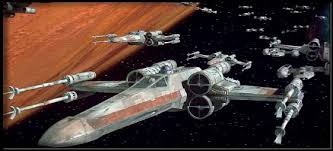
Today I want to talk to you about something which combines these things into something I have begun to really enjoy. It's a tabletop game called X-Wing by probably my favorite game company, Fantasy Flight Games, who in my opinion and experience tend to make fantastic games.

Basically, you have small scale miniatures of ships and fighters from the Star Wars and you assign them to perform maneuvers and try to out maneuver your opponent to get off those vital shots to blow up his ships. Sound interesting? Or too geeky? Wrong answer! There is no such thing as too geeky!
Below is a video of how to play the game.
If you're not yet convinced, I should probably mention that there have been recent expansions to include Han Solo and The Millenium Falcon or Boba Fett and Slave One in your fleet!
I've recently gotten into it and found it a lot of fun. Have a go yourselves.
That's all for now! Have fun!
Until next time, friends!
Recommended Comments
Join the conversation
You can post now and register later. If you have an account, sign in now to post with your account.
Note: Your post will require moderator approval before it will be visible.