

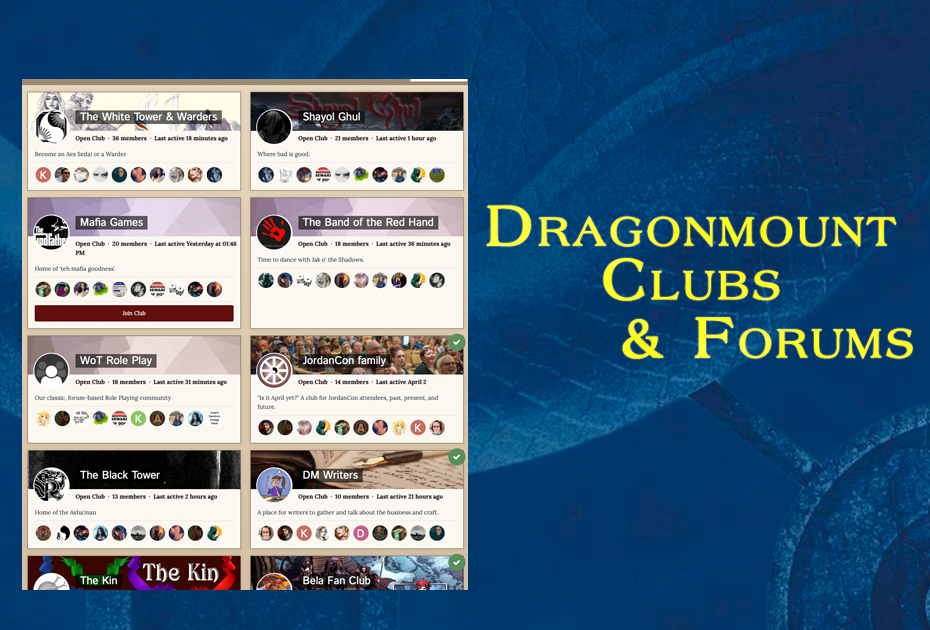
As part of our on-going effort to prepare the website for the forthcoming Wheel of Time TV show, we've added a "new" (really older, but improved) website feature called Clubs.
A Club is a group you can join at Dragonmount where you can meet people with shared interests. We have 3 basic types of clubs: Specific Interest Clubs, Wheel of Time themed clubs, and a role-playing club.
- Specific-Interest Clubs: such as the Bela Fan Club, Brandon Sanderson Cosmere Club, or the DM Writers Club, are mostly unstructured and intended to foster discussion around those topics.
- Themed Clubs: these clubs are based on Wheel of Time organizations such as the White Tower, Band of the Red Hand, or Ogier. Each club will have some sort of structure to it and is a great way to meet fans with similar interests.
- Role Playing Club: Our Wheel of Time roleplaying Club allows you to participate in forum-based role-playing, a feature we've had since 1998!
All Clubs are 100% free to join. Just had over to https://dragonmount.com/clubs and join as many as you like. You can even inquire with the Club leader about being a moderator or co-leader, or start your own club. (New Club requirements)
In addition to adding Clubs, we've archived many of our older forums in order to better focus them on 3 areas: the books, the TV show, and "Off Topic." For long-time members, don't worry, all of the older social groups, role-playing, and forum games have been shifted over to the Clubs. If you are looking for something specific, just ask!
If you'd like to participate, just register for a free account and get started!
Recommended Comments
Join the conversation
You can post now and register later. If you have an account, sign in now to post with your account.
Note: Your post will require moderator approval before it will be visible.