
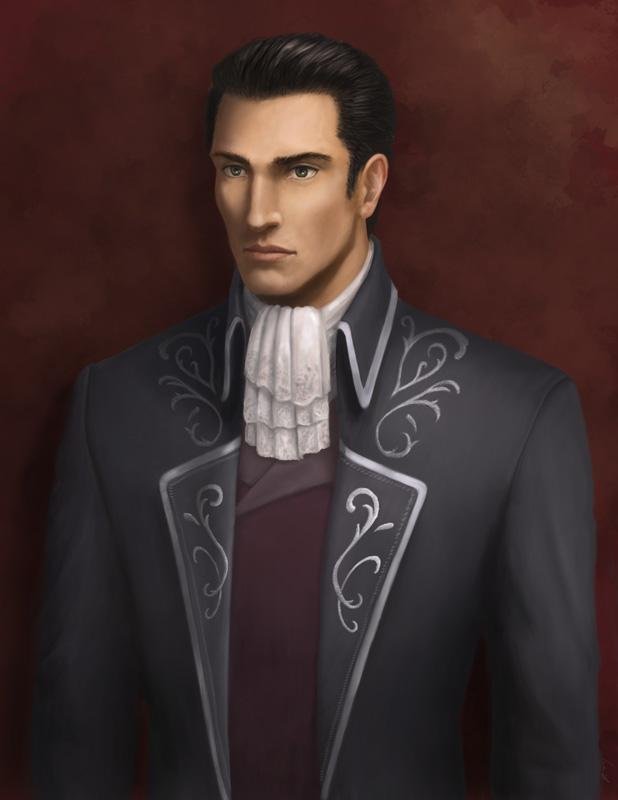
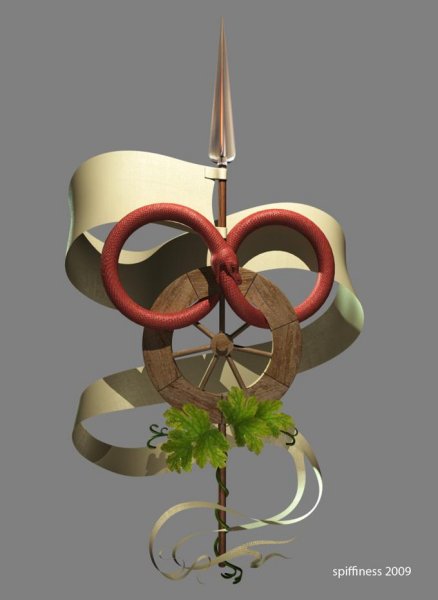
Demandred

By Spiffiness
- 3461 views
- View Spiffiness's images
My favourite Forsaken from The Wheel of Time by Robert Jordan. Also the last male Forsaken to not have died yet  I've wanted to draw/paint him for a long long time, but every time I tried he turned out looking ugly, but I guess I am relatively satisfied with this and this is close enough to how I envision him. <br style="background-image: initial !important; background-attachment: initial !important; background-origin: initial !important; background-clip: initial !important; background-color: transparent !important; border-top-width: 0px !important; border-right-width: 0px !important; border-bottom-width: 0px !important; border-left-width: 0px !important; border-style: initial !important; border-color: initial !important; background-position: initial initial !important; background-repeat: initial initial !important; "><br style="background-image: initial !important; background-attachment: initial !important; background-origin: initial !important; background-clip: initial !important; background-color: transparent !important; border-top-width: 0px !important; border-right-width: 0px !important; border-bottom-width: 0px !important; border-left-width: 0px !important; border-style: initial !important; border-color: initial !important; background-position: initial initial !important; background-repeat: initial initial !important; ">~6-8 hours<br style="background-image: initial !important; background-attachment: initial !important; background-origin: initial !important; background-clip: initial !important; background-color: transparent !important; border-top-width: 0px !important; border-right-width: 0px !important; border-bottom-width: 0px !important; border-left-width: 0px !important; border-style: initial !important; border-color: initial !important; background-position: initial initial !important; background-repeat: initial initial !important; ">Photoshop
Recommended Comments
Join the conversation
You can post now and register later. If you have an account, sign in now to post with your account.
Note: Your post will require moderator approval before it will be visible.