
Juno
-
Joined
-
Last visited
About Me
I'm a hectic cat lady.
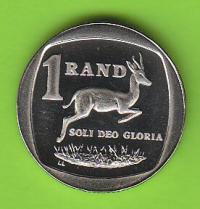
I found a dusty copy of TEOTW in a forgotten corner of a secondhand book store 10 years ago. I was going to use it to prop up a broke table leg. Then I started reading it. Amid trying to reconcile the fact that the currency in my country was the main character's name (awkward) I fell in love with it.
So I'm just here basking the WOT love. And spreading the Gospel of Feline.
Clearly I've missed out on years of Dragonmount amazingness because everyone seems to know everyone, and there's inside jokes and stuff, and I'm just lurking in the background, quietly laughing to myself, googling some stuff, FAQing some other stuff and generally skulking about like a creeper while stroking the nearest feline.
Yes, I realize the innuendo is strong in this description. I wear the dangers of saying I'm a cat lady like a badge of honour. I feel that if Lan was here I'd get a, "Tai'shar South Africa" and there'd be awesomeness and butterflies all round.